If your you app uses a custom domain to send emails, you have to learn about SPF, DKIM and DMARC. It boosts deliverability and keep your domain safe from spoofing.# Youtube video
https://www.youtube.com/@DoCodeDo

Configuring our own domain to send emails
To send emails using your own domain and avoid getting flagged as spam, it’s essential to configure a few DNS records. These records help ensure email deliverability and protect your domain’s reputation by preventing spoofing or tampering.
These entries are:
- SPF (Sender Policy Framework) – Prevents email spoofing: the receiver is able to verify that the server sending the email is a server authorized to send emails using our domain
- DKIM (DomainKeys Identified Mail) – Prevents message tempering: the receiver is able to verify that the message was not modified
- DMARC (Domain-based Message Authentication) – Defines how the receiver should behave when SPF or DKIM check fails and how the receiver should report this failures
SPF (Sender Policy Framework)
How SPF works
When you send an email, the receiving mail server checks if the IP address or domain used to send the email is listed in your SPF record. If it’s not, the email could be flagged as suspicious or even rejected.
SPF specification
Your SPF record is a simple TXT entry in your DNS, and it might look something like this: v=spf1 ip4:x.x.x.x ~all or v=spf1 include:mailproviderdomain.com ~all
- v=spf1 – This indicates that it’s an SPF record (version 1).
- ip4:x.x.x.x – This specifies the IP address of the server that can send emails for your domain.
- include:mailproviderdomain.com – This tells other servers to include your email service provider’s SPF record.
- ~all – This instructs the receiver to soft fail: if the sender’s IP/Domain isn’t listed here, the email might be flagged but not outright rejected.
SPF configuration example
Let’s say you use Google Workspace to send emails. Your SPF record in the DNS might look like this:
v=spf1 include:_spf.google.com ~all
This record ensures that only Google’s mail servers can send emails on your behalf (using your domain as the ‘MAIL FROM’). You can also allow multiple email servers, like this:
v=spf1 include:_spf.google.com include:sendgrid.net ~all
If you want to know more about the options, you can read here: https://dmarcian.com/spf-syntax-table/
DKIM (DomainKeys Identified Mail)
How DKIM works
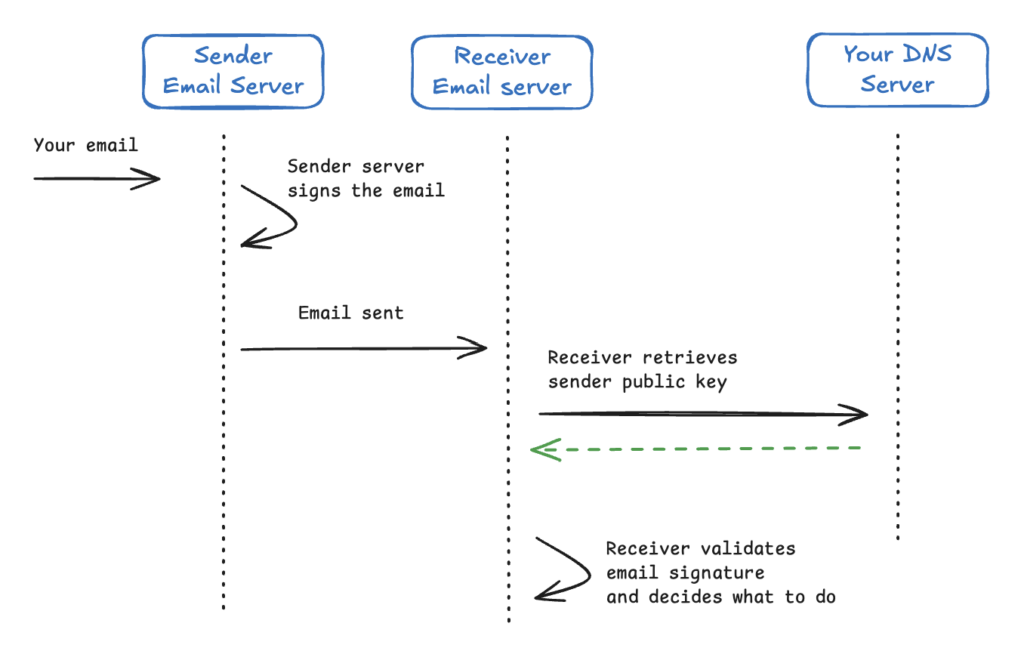
When your mail server sends an email, it attaches a unique digital signature (using a private key) to the message headers. The receiving server checks this signature using the public key stored in your DNS records, confirming the email hasn’t been tampered with.
The flow can be explained like this:
DKIM specification
DKIM requires a couple of elements:
- Selector – A label identifying the DKIM key pair.
- Domain – The domain on whose behalf the email is signed.
- Public Key – This is published the mail server public key
A DKIM entry is a TXT record looking like this:
google._domainkey.yourdomain.com IN TXT "v=DKIM1; k=rsa; p=publickey...
In this case:
- The selector in the email’s DKIM-Signature header will indicate which key to use. If the email is sent via Google Workspace, the selector would be google.
- The recipient’s server will then query the DNS for google._domainkey.yourdomain.com to find the corresponding public key and validate the signature.
DKIM Configuration example
Let’s say you’re using an email service provider like SendGrid. They’ll provide you with a public key that you’ll need to add to your DNS records. It might look something like this:
sendgrid._domainkey.yourdomain.com IN TXT "v=DKIM1; k=rsa; p=pubkey..."
With this record, when someone receives your email, their server can verify the signature and confirm that the message wasn’t tampered.
If you want to learn more about it: https://postmarkapp.com/guides/dkim
DMARC (Domain-based Message Authentication)
How DMARC works
DMARC lets you decide what happens when an email fails the SPF or DKIM check. It gives you the power to tell receiving servers whether they should quarantine, reject, or allow such emails.
DMARC also lets you specify an email address to receive reports about how your domain is being used when a SPF or DKIM check fails.
DMARC specification
A DMARC record includes:
- v=DMARC1 – Version tag for DMARC.
- p=none/quarantine/reject – Defines what happens if the checks fail (none = do nothing, quarantine = mark as suspicious, reject = bounce the email).
- rua – This is the email address where you want to receive reports of failures.
- ruf – works in a similar way to the rua parameter (which sends aggregate reports), but instead of summary information, it sends detailed failure reports for troubleshooting purposes.
Here’s a basic DMARC TXT record example:
subdomain: _dmarc
value: "v=DMARC1; p=quarantine; [email protected]"
This record tells the receiving mail servers to quarantine emails that fail SPF or DKIM and send reports to [email protected].
Check the full specification here: https://dmarc.org/overview/
DMARC Configuration example
Let’s say you want to be strict and reject any emails that fail both SPF and DKIM. Your DMARC record might look like this:
"v=DMARC1; p=reject; [email protected]; [email protected];"
With this setup, emails that fail both checks will be rejected outright, and you’ll get detailed reports to help you keep tabs on your email reputation.
Conclusion
Setting up SPF, DKIM, and DMARC records may seem tricky at first, but once you get the hang of the basics, it’s a breeze. Plus, it’s worth it to protect your email reputation and ensure smooth deliverability.
Subscribe to my newsletter!
I share content about Software Development & Architecture, Entrepreneurship and Lifelong Learning